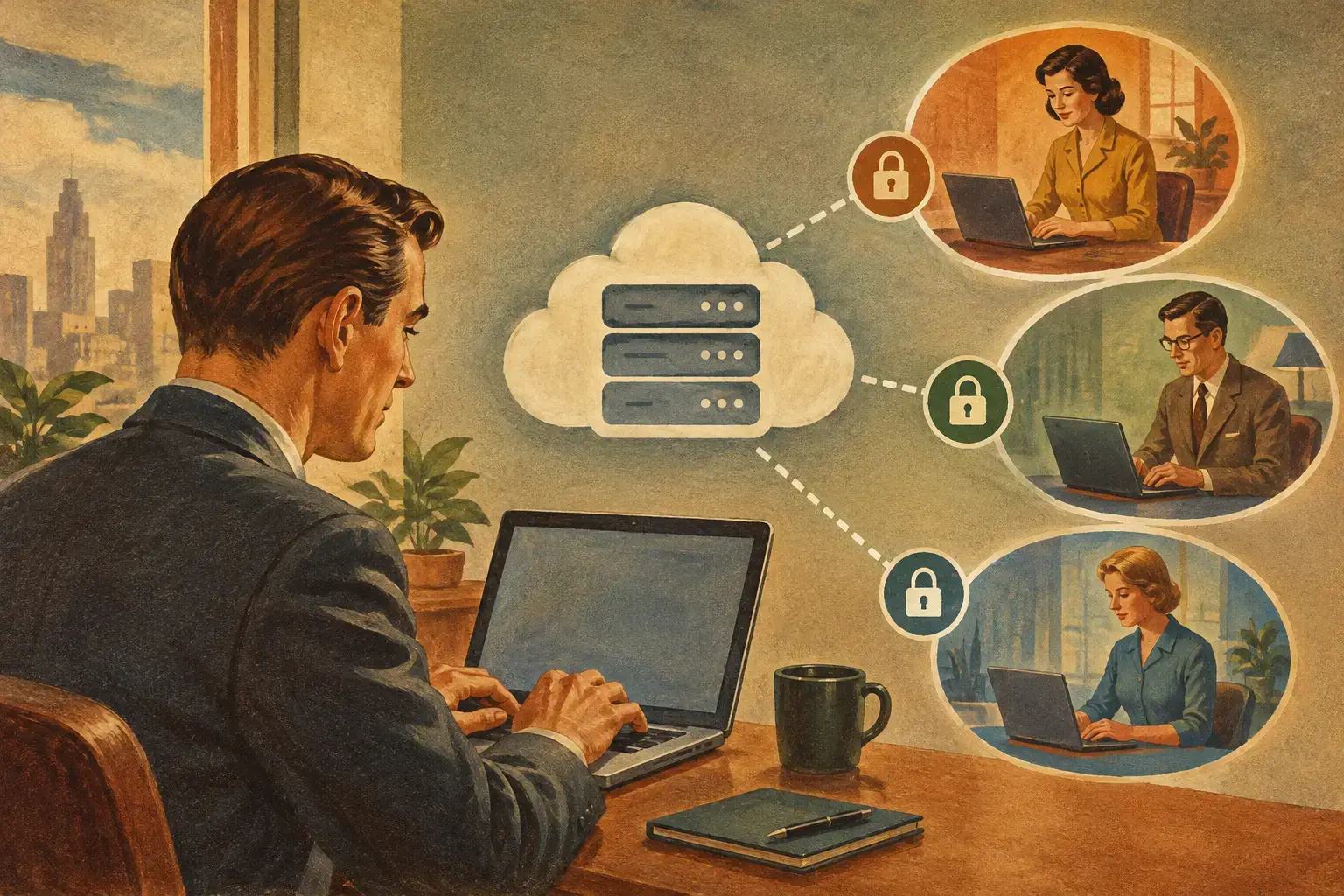
A shared Windows Server can support accounting staff, operations teams, managers, and remote employees at the same time. That does not mean those users should share the same desktop, folders, applications, or administrative rights. Understanding how to isolate RDS sessions is the difference between a centrally managed business environment and a server where one user’s actions can disrupt everyone else.
For Canadian organizations running Windows-based ERP, CRM, accounting, shared-file, or SQL-backed applications, session isolation needs to be planned at the identity, access, application, and infrastructure levels. Remote Desktop Services provides the session framework, but the final result depends on Active Directory design, NTFS permissions, Group Policy, RDS configuration, and the way each business application handles multiple users.
What RDS Session Isolation Actually Means
RDS session isolation means each authorized person signs in using an individual account and receives a separate Windows session. Their desktop processes, open documents, user profile, and application settings are separated from those of other users. A user should not be able to view, control, or reconnect to another user’s session unless they have a defined administrative or support role.
This is not the same as giving every employee a separate virtual server. Multiple users can work on one properly sized Windows Server while maintaining separate sessions. That model keeps applications and data centralized, reduces workstation dependency, and makes backups and access controls easier to administer.
Isolation has limits. Users may still work with the same shared database, shared application records, or department folders when business requirements call for it. The objective is not to prevent all collaboration. It is to ensure that collaboration happens through approved permissions rather than through shared Windows accounts, unrestricted drives, or accidental access to another employee’s work.
How to Isolate RDS Sessions with Individual Accounts
The first control is simple: every person needs an individual Active Directory account. Shared Remote Desktop credentials make auditing weak, complicate offboarding, and prevent reliable access control. When several people use the same login, there is no dependable way to determine who changed a file, installed software, or accessed sensitive records.
Each account should be assigned to role-based security groups. For example, accounting users may need access to the accounting application and finance share, while operations staff may require an ERP client and a separate operations share. Managers may need read access to selected reports without being able to modify source files. Assigning permissions to groups rather than directly to individual accounts makes onboarding and role changes more controlled.
Administrators should also disable or remove access promptly when an employee leaves or changes roles. This is one reason centralized identity management is more practical than maintaining separate local accounts across office PCs and remote devices.
Keep administrative access separate
Regular RDS users should not be local administrators on the session host. Local administrator rights can allow users to install unapproved software, alter security settings, access protected areas of the server, or affect other users’ sessions.
IT administrators should use separate privileged accounts for administrative work. A daily-use account for email, documents, and remote application access should not also be the account used to manage Windows Server, Group Policy, backups, or SQL Server. This separation limits the impact of compromised credentials and creates clearer audit trails.
Control What Users Can See and Do
A separate session alone does not protect company data. Users also need defined permissions inside the operating system and across shared storage.
NTFS permissions should be applied to dedicated folders or departmental shares. Avoid broad access such as granting all staff full control over a common data drive. Finance documents, HR records, operational exports, and application data should be separated according to the organization’s actual workflow. Where users need to collaborate, grant the least access that allows them to complete their work.
Group Policy can further restrict the session environment. Depending on the organization’s needs, policies can limit Control Panel access, block unauthorized removable storage, prevent command-line tools, restrict application installation, and control clipboard or drive redirection. These settings should be selected carefully. Blocking all redirection may be appropriate for highly sensitive data, but it can create friction for teams that legitimately need to transfer approved files between a local device and the server.
A controlled RDS environment commonly separates four access boundaries:
- Windows sign-in rights, which determine who may establish an RDS session.
- File and folder permissions, which determine what data each user can open or change.
- Application permissions, which determine which modules, companies, records, or reports a user can access.
- Network permissions, which determine which systems, databases, printers, and external services are reachable.
These layers work together. A user who can sign in to the server should not automatically have access to every file share or business application installed on it.
Use RDS Policies to Prevent Cross-Session Exposure
Remote Desktop Services includes settings that influence how users interact with sessions. A critical setting is preventing users from connecting to another user’s session. Standard users should not have the ability to shadow, view, or take control of other sessions. Support staff can be given this capability only where there is a defined operational requirement and appropriate user notification or consent process.
Session time limits also matter. Disconnected sessions can remain active for a period so users can reconnect after an internet interruption without losing work. However, leaving disconnected sessions active indefinitely consumes server memory and may leave business applications or files open longer than intended. Set a reasonable disconnected-session limit based on the software being used and the work patterns of the team.
Idle-session limits require the same judgement. Short limits improve control on unattended sessions but can interrupt long-running reports, imports, or data-entry workflows. Accounting teams working in a month-end process may need different policies than general office users. The right configuration reflects the application’s behaviour, not a generic security setting copied from another environment.
Isolate Applications, Not Just Desktops
Many business applications have their own multi-user security model. QuickBooks, Sage, ERP platforms, CRM systems, and SQL-backed applications may control access by company file, role, module, or database login. Windows session isolation does not replace those application controls.
For example, two users can have fully separate RDS sessions but still share access to the same accounting company file. If both need to work in that file, the application must support concurrent use and each person should have the appropriate application-level rights. If an application uses SQL Server, database permissions and service account configuration need their own review. Giving a user access to the RDS server does not mean they should receive direct SQL administrative access.
Published RemoteApp programs can provide an additional layer of focus for some deployments. Rather than presenting a full desktop, users receive only approved applications. This can reduce the visible Windows surface for task-specific users, although a full desktop may remain more practical for staff who use several integrated applications, file shares, printers, and reports throughout the day.
Application-specific support is assessed separately because software vendors differ in their RDS compatibility, licensing terms, database requirements, and support boundaries. A properly configured server cannot correct an application that was not designed for concurrent Remote Desktop use.
Secure the Route Into the RDS Environment
Session isolation is weakened if the entry point is poorly controlled. Remote access should be limited to approved users and protected with strong credentials. Where the operating model requires it, a VPN can provide a controlled access route before users reach Remote Desktop. Firewall rules should permit only necessary services and should not expose unrelated management ports to the public internet.
Device redirection deserves specific attention. Clipboard sharing, local drive mapping, printer redirection, USB passthrough, and audio redirection can each be useful, but they also create paths for data movement or session instability. A finance user handling sensitive exports may need stricter restrictions than a field manager who prints documents locally. Define the policy by role rather than assuming every user needs the same desktop experience.
Individual RDS User CALs must also align with the number of people accessing the environment. Licensing should reflect named users, including remote staff who only connect periodically. This avoids treating a multi-user business server as though it were a single-user remote PC.
Plan Capacity and Profiles for Multiple Users
Users can be isolated logically while still competing for shared server resources. CPU, RAM, NVMe storage performance, and application behaviour determine how many concurrent sessions a server can support comfortably. A team running browser-based tools and office applications has very different requirements from a team running ERP clients, reporting jobs, large Excel files, and SQL-connected accounting software.
User profiles need management as well. Large desktop folders, uncontrolled downloads, and oversized cached files can slow logons and consume storage. Redirecting approved user data to managed locations, setting profile policies, and monitoring growth helps keep the session host predictable. Do not place live database files in ordinary user profile folders or rely on desktop storage as the primary location for business data.
Daily backups are essential, but they are not a substitute for permissions. A backup can restore data after deletion, corruption, or a broader server issue. It does not prevent an authorized user with excessive rights from making an unwanted change in the first place. Retention, restore testing, and clear ownership of application data should be discussed during onboarding.
Test Isolation Before Users Rely on It
Before handover, test the environment with representative accounts from each role. Confirm that a finance user can reach the required application and files but not HR records; confirm that an operations user cannot install software or access another employee’s session; and confirm that administrators can support the environment without using shared credentials.
Also test practical scenarios: a dropped home internet connection, a disconnected session, a printer issue, a new user onboarding request, and a file restore request. These are the situations where unclear configuration becomes visible.
Netcloud24’s managed setup and onboarding can establish the Windows Server, RDS user access, Active Directory accounts, permissions, firewall rules, VPN connectivity, and scheduled backups before the environment is handed over. The organization still needs to identify its user roles, approved applications, data owners, and any vendor-specific requirements for its business software.
A well-isolated RDS environment gives employees a familiar place to work while giving the business defined control over who can enter, what they can access, and how the environment can be recovered. That control is most effective when it is reviewed as teams, applications, and access requirements change.
 Managed VPS Support for Windows Business Apps
A Windows VPS is not ready for staff use when the operating system finishes installing. For a business running accounting software, an ERP…
 RDS Licensing Explained for Canadian Businesses
A Windows VPS can appear straightforward until several employees need to run the same accounting, ERP, CRM, or database application…
 Managed Versus Unmanaged VPS: What Businesses Need
A managed versus unmanaged VPS decision is rarely about whether a virtual server has enough CPU or storage. For a business running…
 How to Set Up Remote Application Access Securely
A finance manager working from home should not need a copy of the accounting database on a laptop, a shared administrator password, or an…
 Business Server Security Checklist for Windows
A Windows server that hosts accounting, ERP, CRM, SQL, or shared-file workloads is not simply a place to store data. It is a controlled…
