Skip to content
Windows 11 LTSC VPS for Canada

Windows 11 LTSC VPS

A hosted Windows 11 LTSC desktop with Remote Desktop access, NVMe storage and daily backups. Install the applications you need for development, scripts and AI-assisted work, including tools such as Codex. Select your VPS package, billing period and location, then order online.

A Windows desktop for your applications

Windows 11 LTSC, NVMe storage and daily backups

Keep your development tools, repositories and working files on one VPS. Connect from your computer through Remote Desktop and return to the same Windows environment, with the CPU, memory and storage specified in your package.

For one active desktop user. Choose Windows Server for simultaneous access by your team.

Google reviews

Netcloud24

5.0 / 5
★★★★★Google rating
Read reviews

Windows 11 LTSC VPS plans

Four VPS configurations with Windows 11 LTSC, NVMe storage and daily system-disk backups. VPS-2, VPS-3 and VPS-4 also include a dedicated VPN and individual user setup.

Pay yearly. Save on every VPS plan.

See your annual saving below, compared with 12 monthly payments for the same plan.

12 months paid upfront
2027

VPS-1

Save 5.0% with annual billing
CA$129.99 with monthly billing
CA$123.49
CAD / month when paid yearly
CA$1,481.89 billed upfront for 12 months

Save CA$77.99 per year

  • 2 vCores
  • 4 GB RAM
  • 40 GB SSD NVMe
  • Windows 11 LTSC
  • 500 Mbps public bandwidth
  • Unlimited traffic
  • Premium backup · 7 days + snapshot
  • One dedicated IPv4 address
Remote DesktopIndividual Windows desktop
Configure VPS-1
2027

VPS-2

Save 7.0% with annual billing
CA$178.99 with monthly billing
CA$166.46
CAD / month when paid yearly
CA$1,997.53 billed upfront for 12 months

Save CA$150.35 per year

  • 4 vCores
  • 8 GB RAM
  • 75 GB SSD NVMe
  • Windows 11 LTSC
  • Dedicated VPN
  • Individual user setup included
  • 1 Gbps public bandwidth
  • Unlimited traffic
  • Premium backup · 7 days + snapshot
  • One dedicated IPv4 address
Remote DesktopIndividual Windows desktop
Configure VPS-2
2027

VPS-3

Save 9.0% with annual billing
CA$249.99 with monthly billing
CA$227.49
CAD / month when paid yearly
CA$2,729.89 billed upfront for 12 months

Save CA$269.99 per year

  • 6 vCores
  • 12 GB RAM
  • 100 GB SSD NVMe
  • Windows 11 LTSC
  • Dedicated VPN
  • Individual user setup included
  • 2 Gbps public bandwidth
  • Unlimited traffic
  • Premium backup · 7 days + snapshot
  • One dedicated IPv4 address
Remote DesktopIndividual Windows desktop
Configure VPS-3
2027

VPS-4

Save 15.0% with annual billing
CA$299.00 with monthly billing
CA$254.15
CAD / month when paid yearly
CA$3,049.80 billed upfront for 12 months

Save CA$538.20 per year

  • 8 vCores
  • 24 GB RAM
  • 200 GB SSD NVMe
  • Windows 11 LTSC
  • Dedicated VPN
  • Individual user setup included
  • 3 Gbps public bandwidth
  • Unlimited traffic
  • Premium backup · 7 days + snapshot
  • One dedicated IPv4 address
Remote DesktopIndividual Windows desktop
Configure VPS-4

Individual user setup for VPS-2, VPS-3 and VPS-4. We configure your Windows desktop account, Remote Desktop access and permissions, with a dedicated VPN for your connection.

The displayed monthly prices include the annual plan discount and require 12 months paid upfront. Savings are compared with 12 monthly payments for the same VPS plan. Monthly and 6-month billing are also available in the configurator. Select your location and review availability before checkout. Additional storage and optional backups are priced in the configurator.

Need simultaneous team access? View Windows Server plans

The resources behind your Windows desktop

Choose a Windows desktop with the processing power, memory and storage your applications need. Every package includes Remote Desktop access, a dedicated IPv4 address and the backup service specified below.

NVMe storage

Each VPS includes an NVMe system disk, from 40 GB in VPS-1 to 200 GB in VPS-4. Use it for Windows, installed applications and project data. Choose capacity for the whole working environment, including development dependencies, browser profiles, application logs and temporary files produced during processing.

CPU and memory

Choose from 2 to 8 vCores and 4 to 24 GB RAM. These resources run your Windows desktop and applications. A larger package provides more capacity for development tools, browser sessions and tasks running together. The right configuration depends on the software you use and its actual resource requirements.

Remote Desktop access

Access your Windows desktop through a compatible Remote Desktop client. Your applications, settings and files are held on the VPS, so you can reconnect to the environment from another computer. This is useful when you work from several locations and want to keep the project setup in one place.

A dedicated IPv4 address

Every package includes one dedicated public IPv4 address, unlimited traffic and the public bandwidth shown in the specification. Your applications can connect to their external services, repositories and APIs from the VPS. VPS-2, VPS-3 and VPS-4 also include a dedicated VPN and configuration of your individual desktop account.

Daily backups and a snapshot

Premium daily backups of the system disk are included, with restore points retained for seven days. A snapshot is also included for changes to the VPS environment. Backup coverage applies to the system disk; additional data disks and information held in external services need their own backup arrangements.

Technical support

Netcloud24 supports the VPS platform, Remote Desktop connectivity and the network access supplied with the service. Contact us about connection problems, the hosting environment or changes to your resource requirements. You remain responsible for the applications you install and the projects, scripts and external accounts used on the desktop.

Windows applications, development and automation

Windows 11 LTSC provides an environment for software that needs a Windows desktop. These are examples of workloads you can configure using compatible applications and your own software accounts.

AI-assisted software development

Use Codex or another compatible coding assistant alongside your editor, repository and development tools. The VPS provides a separate Windows environment in which to work with code, run checks and review changes. Connect the assistant using your own account or API access; AI subscriptions and usage charges are separate from the VPS service.

Scripts and business integrations

A Windows VPS can run compatible Python programs, PowerShell scripts and tools that exchange data with other services. Typical workloads include file processing, report preparation and scheduled checks. Keeping the runtime, dependencies and working files together gives the application a consistent environment without requiring the same setup on each computer you use.

Browser-based workflows

Use the desktop for work that involves a browser, a graphical application or a combination of both. It can provide the Windows environment for supported browser automation and tasks requiring manual review. The software, target website and account permissions determine how a particular workflow can run and whether it supports unattended operation.

Windows development and testing

Maintain a separate environment for your development tools and Windows application tests. Install the runtimes and dependencies required by the project, keep the files on the VPS and access them through Remote Desktop. This is useful for checking Windows-specific behaviour and returning to an established project setup from different computers.

Applications connected to AI services

Run a client application or integration that sends requests to an external AI service and processes the results. The VPS supplies the Windows environment, files and application resources; the AI provider supplies its hosted model. This suits workflows that combine model responses with scripts, document processing or other Windows software.

Scheduled processing

Use Windows Task Scheduler or a supported background service for applications designed to run unattended. This can support recurring reports, data processing and routine checks without keeping your local computer switched on. The task must be configured for its operating account, dependencies and restart behaviour; interactive desktop software may require a signed-in session.

Your individual Windows environment

A Windows desktop built around your applications

The service combines Windows 11 LTSC with the resources of your selected VPS. Access the desktop remotely, install the applications required for your work and keep the files in that environment. Choose monthly, six-month or annual billing and review the complete price before placing your order.

LTSC is the Long-Term Servicing Channel of Windows. It follows a different release approach from the general Windows desktop channel and is intended for specialized environments with defined requirements. Check that your intended applications support this edition, especially software that depends on Microsoft Store components or particular Windows features.

A desktop operating system

Windows 11 LTSC provides a graphical Windows desktop for your applications, files and development tools. It is offered here for one active interactive user at a time. Choose the resource level that suits that person’s workload, from a light desktop setup to a larger development environment.

Applications of your choice

Install software that supports Windows 11 LTSC and the resources of your package. This may include editors, browsers, development runtimes and utilities used by your business. Application licences, AI subscriptions and API access are supplied through your own accounts unless expressly included in the service specification.

Control of your workspace

Your Windows environment has its own account and application configuration. Decide which tools you install and which repositories, files and external services they can access. Keep API credentials and other service accounts under your control, and review the permissions granted to coding agents and automation tools.

A defined service scope

The subscription covers the VPS resources, Windows environment and services listed for your package. Netcloud24 provides support for that hosting environment. Software development, the operation of your applications and the results produced by scripts or AI tools remain part of your own project or business process.

From configuration to checkout

Choose your resources and location in the configurator, confirm Windows 11 LTSC and review the included services. The selected product and billing amount carry through to the cart.

After your order and payment are confirmed, the Windows environment is prepared and the connection details are supplied. Application installation and configuration follow the requirements of the software you intend to use.

Choose your package

Select the CPU, memory and storage your applications require. The configurator shows all four packages and the price for each available billing period before you add the VPS to your cart.

Select your location

Choose a location offered for your selected package. Availability is checked during configuration and again before the VPS is added to your cart.

Confirm the configuration

The operating system is Windows 11 LTSC. Review the additional storage, included backup options and complete configuration before continuing to checkout.

Order and pay online

Enter your business and billing details and select an available payment method. The order records the Windows 11 LTSC product, selected options, billing period and total amount.

Choose the package for your workload

VPS-1 is the entry configuration, with 2 vCores, 4 GB RAM and 40 GB NVMe storage. VPS-2, VPS-3 and VPS-4 increase the available resources for larger projects and applications running together. Compare your software’s requirements with each specification and allow capacity for Windows, project dependencies and working data.

These are CPU-based VPS packages. They can run development tools and applications that connect to hosted AI services; a dedicated GPU is not included. If you plan to run a model locally, assess its processing, memory and storage requirements separately before choosing a package.

Choose Windows Server when people need to work together

An individual hosted desktop and a shared business server solve different access needs. Select the operating system around the way people will use the environment.

Windows 11 LTSC for individual work

Choose Windows 11 LTSC when one person needs a hosted Windows desktop for applications, development or automation. The package supplies the resources for that individual environment, with Remote Desktop access and the backup service listed in the plan.

Windows Server for your team

Choose Windows Server when colleagues need to sign in simultaneously using separate accounts. Our main page lists the available server packages, RDS User CAL allowances and user setup. It is the appropriate range for a shared Remote Desktop working environment.

Choose around the way you work

More CPU, RAM or storage increases the capacity of an individual Windows 11 desktop. Simultaneous access by several people requires a different Windows environment and licensing. View Windows Server plans if your requirement includes a shared desktop service for a team.

Plan your Windows workspace

A useful VPS configuration starts with the applications you need to run, the data they use and how you will access them. Consider the complete workload when choosing resources, including any development tools, browser sessions and scheduled processes that will run together.

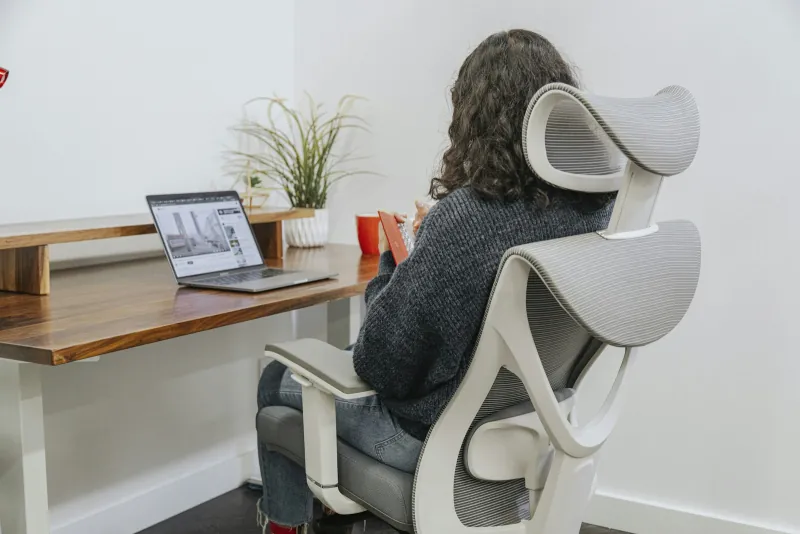
Individual working at a desk with a laptop

A working environment across locations

Keep the applications and project files on the VPS while using Remote Desktop to connect from your own computer. This can reduce the need to recreate a development setup each time you change devices. Your connection quality and the location of the VPS still affect the experience of using a remote graphical desktop.

Ongoing development projects

A separate Windows environment is useful for projects with their own tools and dependencies. You can return to the same working directories and application configuration between sessions. Keep source code in version control as well: a repository records changes to your project, while VPS backups provide recovery points for the system environment.

Storage for the complete workload

Consider the space required by Windows, installed tools and working data together. Development dependencies, application caches and generated output can occupy more storage than the source files themselves. The configurator offers additional data disks when the workload needs storage beyond the package’s included NVMe system disk.

Interactive and unattended applications

A Remote Desktop session gives you direct access to Windows applications that require a graphical interface. Scripts and applications designed for background execution can use an appropriate scheduled task or service. The two modes have different requirements, so the application’s supported operating mode should guide how you run it on the VPS.

Your existing software accounts

Use the business software and external services for which you have the necessary access rights. A VPS subscription is separate from those accounts: it supplies the Windows environment in which the client tools run. Check application licences, AI usage limits and API charges when budgeting for the complete workflow.

Resources matched to the application

Measure the CPU, memory and disk use of the tools you intend to run together. This gives a practical basis for choosing a package and reviewing it as the project develops. Resource requirements vary between workloads; the name of an AI tool alone does not determine the size of VPS it needs.

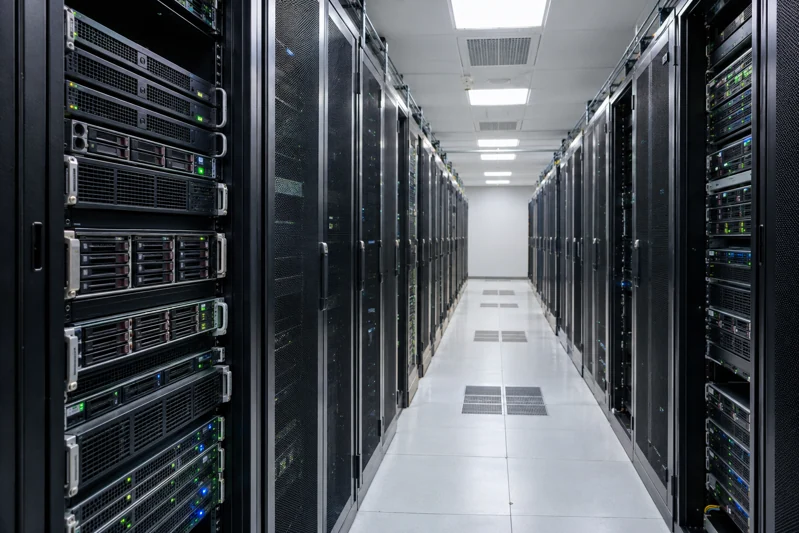
Rack-mounted servers in a data center

Choose a location for your connections

The Canada range is hosted in Ontario, Canada. Consider the people connecting to the desktop and the external services used by your applications. The location and availability of your selected package are shown during configuration, before you continue to the cart.

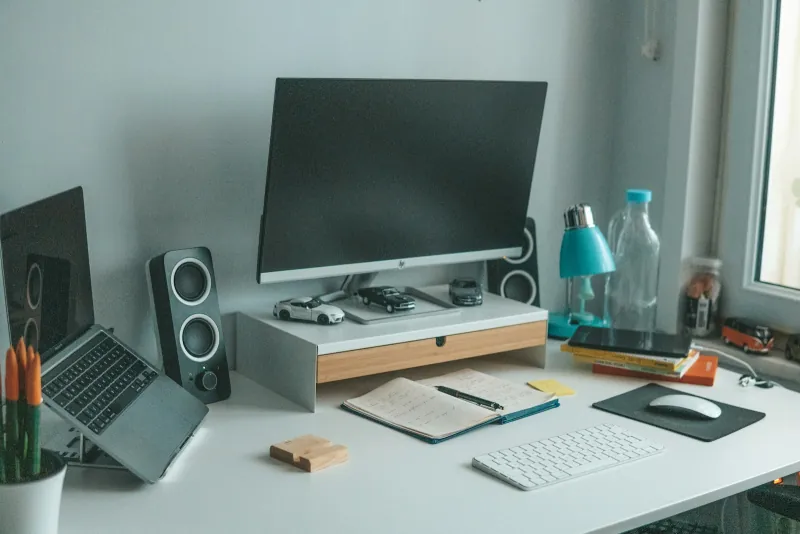
Desk with a monitor and keyboard

A separate Windows environment

Keep project-specific applications and dependencies on the VPS rather than installing them on every computer you use. This provides a distinct workspace for the workload, with its own files, settings and external connections. Your chosen package defines the hosting resources, while the software you install determines how those resources are used.

Choose your Windows 11 LTSC plan

Windows 11 LTSC VPS: practical questions

What the service includes, how to use your desktop and when to choose Windows Server for team access.

Each package includes Windows 11 LTSC, the CPU, RAM, NVMe storage and public bandwidth listed above, unlimited traffic, one dedicated IPv4 address, Premium daily system-disk backups with seven-day retention and a snapshot. VPS-2, VPS-3 and VPS-4 also include a dedicated VPN and individual user setup. You can select the billing period and available options in the configurator.
You can install compatible coding tools and use your own account or API access for the service you choose. The VPS provides the Windows workspace, project files and local development tools. Check the agent’s current Windows requirements and permissions before installation. Review generated changes and test your project as you would with other development work.
The VPS price covers the hosting package shown on this page. It does not include a Codex or other AI subscription, API credits, or licences for third-party applications. Sign in with your own account and check the provider’s usage terms, limits and pricing for the model or service your application will use.
This offer is for individual use, with one interactive desktop session at a time. For simultaneous access by colleagues using separate Windows accounts, choose the Windows Server plans on our main page. Those offers describe the RDS User CAL allowance and team access configuration included with each package.
Disconnecting from Remote Desktop normally leaves the signed-in session running, but signing out closes that user’s applications. Restarts, session policies and application requirements can also affect a task. Use an appropriate scheduled task or supported background service for unattended work, and test its behaviour under the account and restart conditions you intend to use.
The four Windows 11 packages use the same base prices, resource allocations and annual discounts as their corresponding plans on the main page. The displayed monthly figure assumes twelve months paid upfront. Monthly and six-month billing are also available. The configurator and cart show the billing period, selected extras and full amount before payment.
Check compatibility with the software vendor before relying on a particular application. LTSC has a different servicing approach from the general Windows channel, and some applications or Microsoft Store dependencies may require additional checks. Tell us about any specific Windows components your project needs before you choose the environment.
Select Configure on a package, choose your billing period and location, confirm Windows 11 LTSC and review the options. Continue to the cart to check the complete configuration and total, then enter your details and choose an available payment method. Your order identifies Windows 11 LTSC as the operating system for the selected package.

Choose your Windows 11 LTSC VPS

Compare the four packages and review your configuration before payment. For simultaneous team access, choose Windows Server.
Contact

Write to us

Do you have questions about our services or need a quote? Write to us and we will respond as soon as possible.

Contact form

Fields marked * are required.