Applies to: Windows Server 2019, Windows Server 2022, and Windows Server 2025.
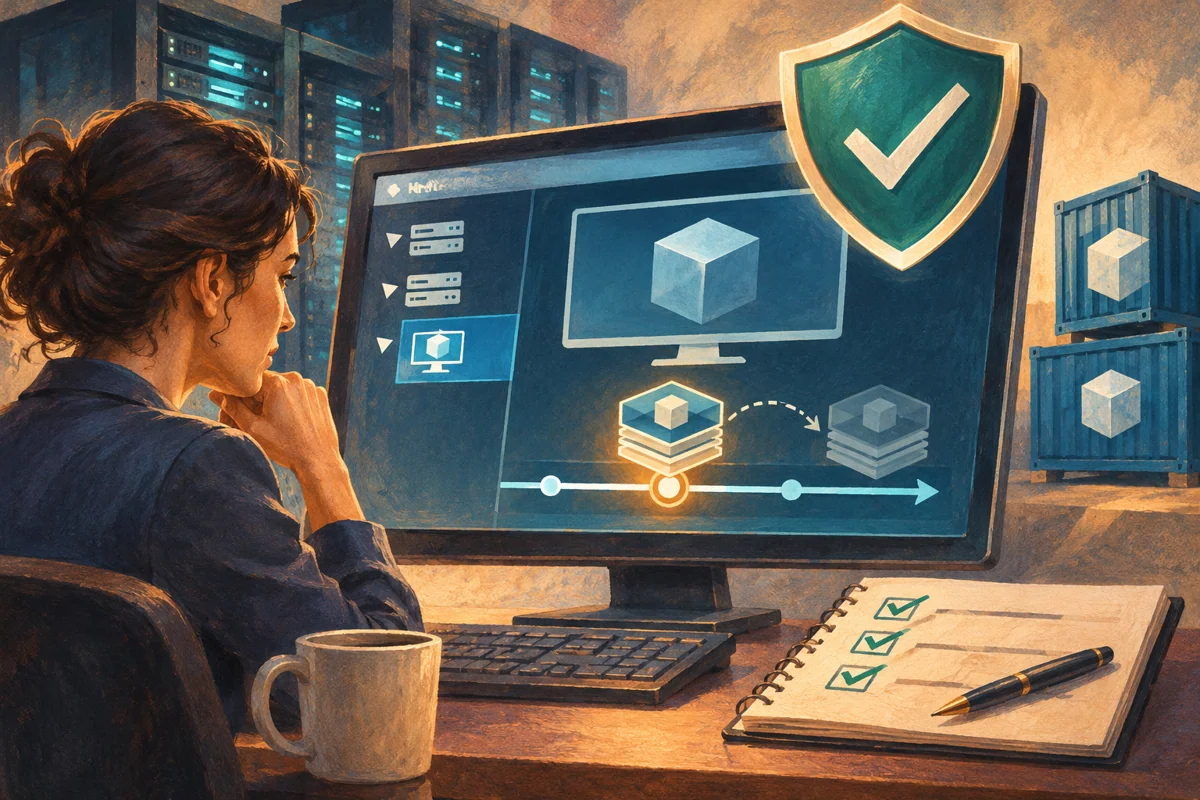
A production checkpoint provides a short-lived recovery point before a controlled virtual-machine change.
Prerequisites
- Administrative access and an approved change window.
- A verified backup and documented rollback plan.
- A pilot environment or low-risk target for validation.
Step-by-step procedure
- Confirm the workload supports production checkpoints.
- Verify free storage and backup health.
- Create a named checkpoint immediately before the change.
- Remove it after successful validation.
Commands
Set-VM -Name "APP01" -CheckpointType ProductionOnly
Checkpoint-VM -Name "APP01" -SnapshotName "Before-August-Maintenance"
Get-VMSnapshot -VMName "APP01"
Verification
The checkpoint appears with the correct type and the VM workload remains healthy.
Rollback
Apply the checkpoint only if application owners approve data rollback; otherwise remove it after validation.
Security notes
- Use least privilege and record the change.
- Review relevant event logs after implementation.
- Test before production rollout.
Choose production-only checkpoints when fallback is unacceptable
A checkpoint is a temporary recovery point within the virtualization storage chain, not an independent backup. If the host or underlying storage fails, the checkpoint can fail with it. Keep a tested guest backup before relying on a checkpoint for a maintenance rollback.
Production checkpoints coordinate with supported guest mechanisms for application-consistent recovery. The Production setting can permit fallback to a standard checkpoint if a production checkpoint cannot be created. When the change requires production-checkpoint semantics, use ProductionOnly and investigate a failed request instead of accepting an unplanned fallback.
Check the guest integration status, free storage and application support before taking the checkpoint. Document what will be rolled back, including database writes or external integrations made after the checkpoint. Restoring a VM does not automatically undo a transaction already sent to another system.
After successful maintenance and owner acceptance, remove the temporary checkpoint through supported Hyper-V tools and monitor the storage merge. Never delete AVHDX files manually to reclaim space. Keep checkpoints short-lived and define who decides when the rollback window has closed.
Reference: Microsoft Hyper-V checkpoint guidance.
Related resources
Canadian Windows VPS and RDS hosting: managed Windows VPS hosting. Refer to Microsoft Windows Server documentation.
 How to Install the Hyper-V Role on Windows Server
Install Hyper-V on a supported Windows Server host, verify processor and nesting prerequisites, restart deliberately, check hypervisor…
 How to Create an External Hyper-V Virtual Switch
Create an external Hyper-V switch with explicit uplink and management-sharing choices, verify host and guest VLANs, diagnose provider…
 How to Create a Generation 2 Hyper-V Virtual Machine with PowerShell
Create a Generation 2 Hyper-V VM with explicit storage, CPU, memory, UEFI and Secure Boot settings, install a supported guest, and validate…
 How to Configure Production Checkpoints in Hyper-V
Configure Hyper-V ProductionOnly checkpoints, validate guest VSS and storage prerequisites, create a maintenance checkpoint, and understand…
 How to Configure Hyper-V Replica Between Two Hosts
Configure certificate-authenticated Hyper-V Replica between standalone hosts, restrict the receiving listener, verify synchronization, and…