Applies to: Windows Server 2019, Windows Server 2022, and Windows Server 2025.
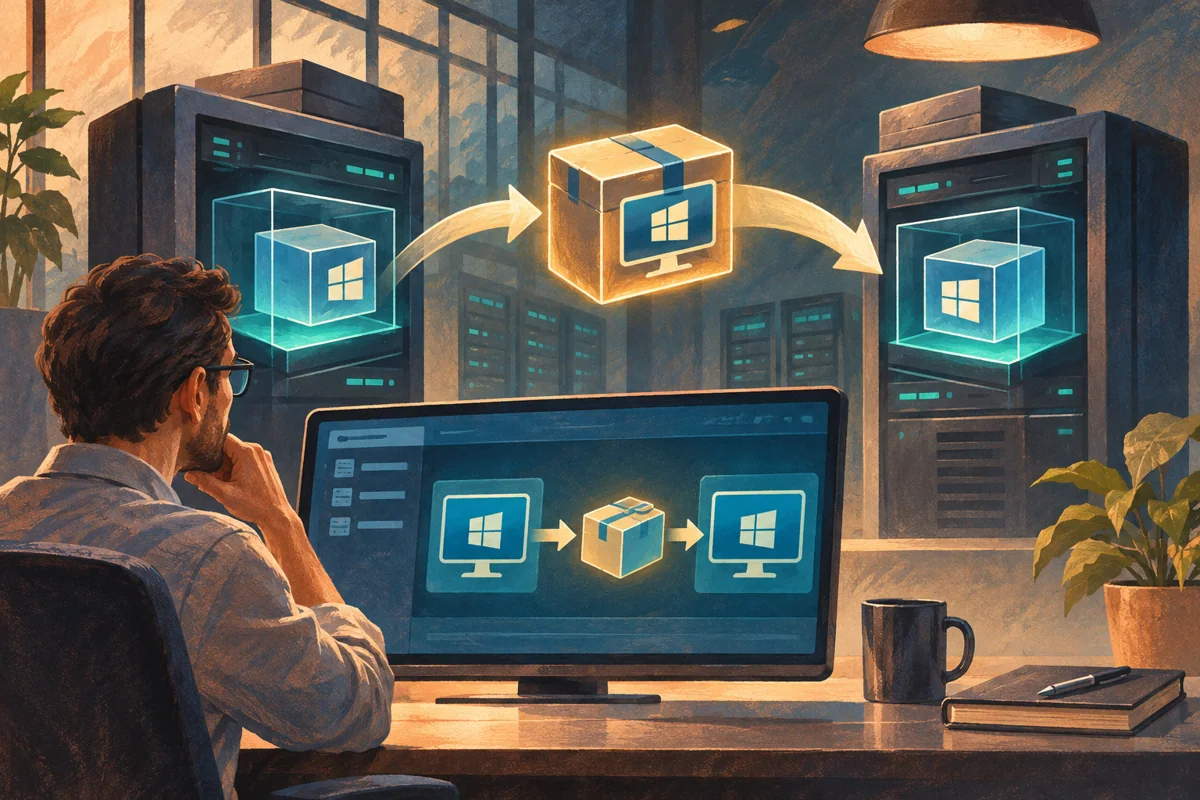
Hyper-V export creates a portable copy of VM configuration, disks, and checkpoint metadata.
Prerequisites
- Administrative access and an approved change window.
- A verified backup and documented rollback plan.
- A pilot environment or low-risk target for validation.
Step-by-step procedure
- Quiesce the application and confirm destination capacity.
- Export to a protected path.
- Validate exported files and hashes.
- Import using copy, register, or restore mode as appropriate.
Commands
Export-VM -Name "APP01" -Path "E:\VMExports"
Get-ChildItem "E:\VMExports" -Recurse
Import-VM -Path "E:\VMExports\APP01\Virtual Machines\example.vmcx" -Copy -GenerateNewId
Verification
The imported VM has unique identity, correct networking, and passes application health checks.
Rollback
Remove the test import after validation; retain the source export according to backup policy.
Security notes
- Use least privilege and record the change.
- Review relevant event logs after implementation.
- Test before production rollout.
Choose import semantics before creating a second VM
Export includes the VM configuration and associated files needed by the selected operation, but an exported copy still needs protected storage and a recovery test. Record the source host, VM configuration version and exported path. Verify the destination host supports the configuration version before an incident forces you to discover that it cannot import it.
Register, restore and copy imports have different effects on the VM’s identity and file locations. The example uses a copy with a new VM ID. A new Hyper-V ID does not automatically change the guest computer name, IP address, domain identity or application identifiers. Starting an unchanged copy on the production network can create conflicts.
Import into an isolated test network first when validating recovery or creating a lab copy. Review virtual-switch mappings and storage destinations explicitly. Do not assume a switch name on the destination means the same VLAN or upstream access as the source host.
After boot, verify disks, network interfaces, guest services and the actual business application. Document whether the source VM is still authoritative and how cutover will avoid two live copies writing to the same external systems. Keep the export until the tested recovery result and retention policy justify removing it.
Related resources
Canadian Windows VPS and RDS hosting: managed Windows VPS hosting. Refer to Microsoft Windows Server documentation.
 How to Install the Hyper-V Role on Windows Server
Install Hyper-V on a supported Windows Server host, verify processor and nesting prerequisites, restart deliberately, check hypervisor…
 How to Create an External Hyper-V Virtual Switch
Create an external Hyper-V switch with explicit uplink and management-sharing choices, verify host and guest VLANs, diagnose provider…
 How to Create a Generation 2 Hyper-V Virtual Machine with PowerShell
Create a Generation 2 Hyper-V VM with explicit storage, CPU, memory, UEFI and Secure Boot settings, install a supported guest, and validate…
 How to Configure Production Checkpoints in Hyper-V
Configure Hyper-V ProductionOnly checkpoints, validate guest VSS and storage prerequisites, create a maintenance checkpoint, and understand…
 How to Configure Hyper-V Replica Between Two Hosts
Configure certificate-authenticated Hyper-V Replica between standalone hosts, restrict the receiving listener, verify synchronization, and…