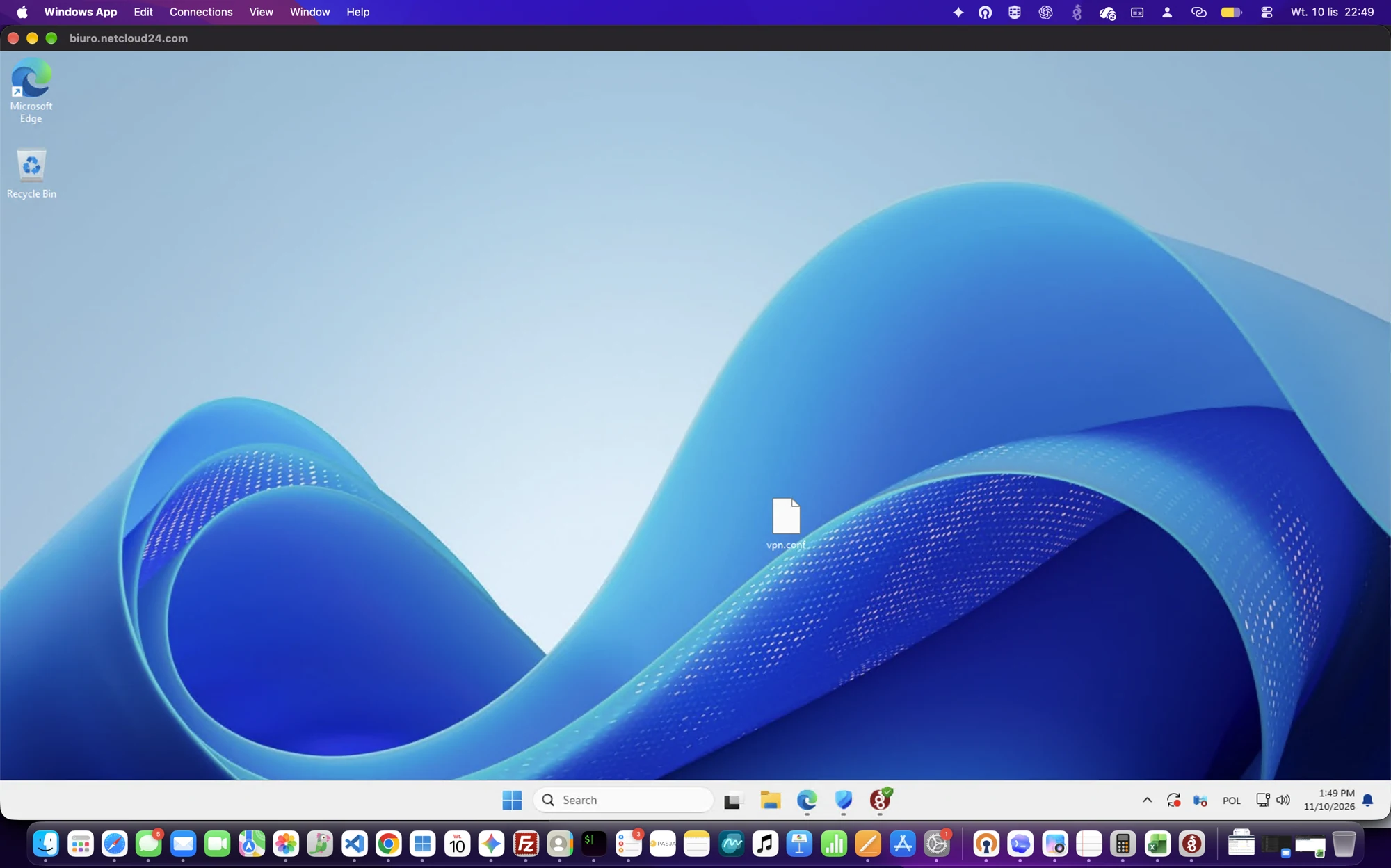
A managed Windows VPS with Remote Desktop Services (RDS) lets several authorised people work on the same Windows server at the same time. Each employee signs in with an individual Windows account and receives a separate desktop session. Colleagues can use compatible business applications and shared company files from Windows computers or Macs.
Netcloud24 prepares the entire agreed server environment from A to Z. You do not need to install Windows Server, configure RDS, create server-side VPN rules or build the user environment yourself. Our team handles the setup and onboarding, then provides the connection details and ready-to-import VPN profiles. On your own computer, you only install the client applications if needed, import the supplied profile and sign in.
Order your Windows VPS and let us handle the setup
See how to choose your VPS, place an order and get your team connected. NetCloud24 prepares the agreed Windows environment, user accounts, VPN access and backup schedule, then provides the instructions your employees need to sign in.
How several people work on one server
RDS provides individual interactive sessions on a Windows Server environment. For example, one employee can work in an accounting application while another opens an ERP system and a third reviews documents. They share the server’s processing power, memory and storage, while their desktop sessions remain separate.
This is different from several people controlling one shared screen. Each person uses their own account, and permissions determine which folders and applications they can access. Shared data should be stored in the locations prepared for your team, rather than in another employee’s private desktop folder.
The application must support Windows Server and the intended multi-user arrangement. A central server does not automatically make every desktop program safe for simultaneous editing. Database-backed applications, accounting systems and document workflows can have their own concurrency and licensing requirements. We review these requirements during onboarding.
What Netcloud24 configures for you
Tell us how many people need access, which applications they use and whether they work from Windows, Mac or both. We use that information to prepare the agreed environment and connection method. You do not have to follow a server-administration tutorial to get your team online.
- Windows Server and RDS: prepare the operating system and remote-session environment for the agreed users.
- Accounts and permissions: create individual Windows accounts and assign access to the required resources.
- VPN and firewall rules: prepare the protected access route and provide device-specific VPN profiles.
- Business software preparation: configure the agreed Windows roles and dependencies, with application installation handled within the agreed onboarding scope.
- Backups and onboarding: set the plan’s backup schedule and provide the connection instructions your team needs.
Application media, third-party subscriptions and vendor licences must be available where required. We confirm these details with you before setup. If the application needs Microsoft SQL Server, tell us during planning so the database and licensing model can be assessed.
Choose the right number of RDS users
Simultaneous sessions depend on the configured RDS deployment, sufficient server resources and the appropriate licences. RDS User CALs are assigned to users; they are not simply a pool of interchangeable concurrent login slots. Each person who requires access must be covered under the applicable licensing arrangement.
The administrative Remote Desktop connections available on Windows Server are intended for administration and do not replace a properly licensed multi-user RDS deployment. Netcloud24 reviews the required user count and plan with you. CPU, memory and storage also need to support the actual applications used at the same time.
Use a separate Windows account for every employee. The Administrator account visible in the connection examples demonstrates a sign-in prompt; it is not an instruction for a whole team to share administrative credentials.
Microsoft explains the distinction between per-user and per-device access in its RDS licensing overview. We confirm the applicable arrangement for your hosted environment during onboarding.
Start in the client panel: your access is already prepared
Open the Netcloud24 client area and select your VPS service. The Remote Desktop section provides the assigned address and username. The VPN access section contains Download your VPN profiles. Download the WireGuard profile for the computer you will use and keep it private.
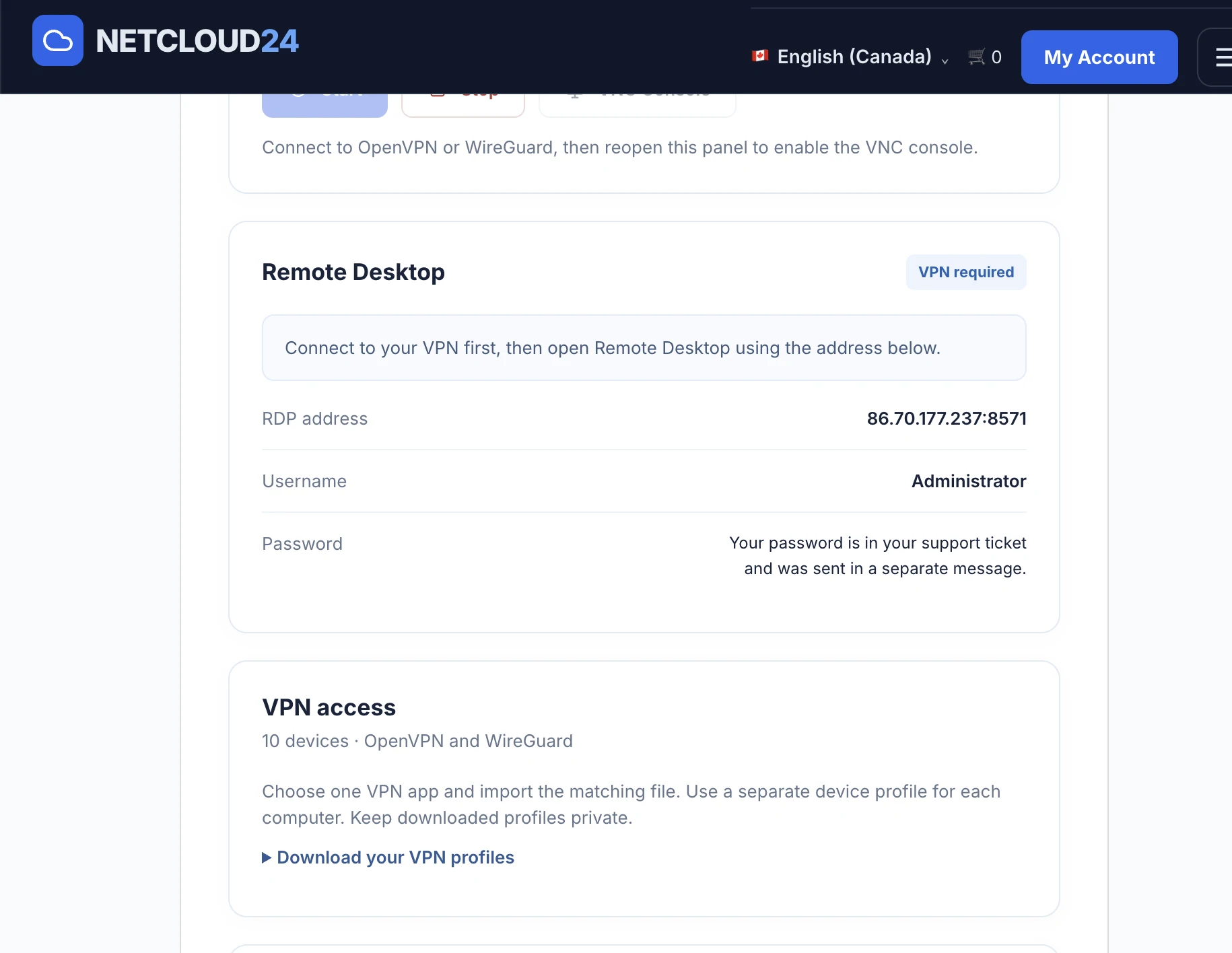
Use the complete address from your own service, including any port after a colon. Addresses and hostnames in the illustrations are examples. The password is delivered through the service’s separate communication channel; follow the instructions shown in your panel. Do not publish the password or VPN configuration.
Connect from a Windows computer
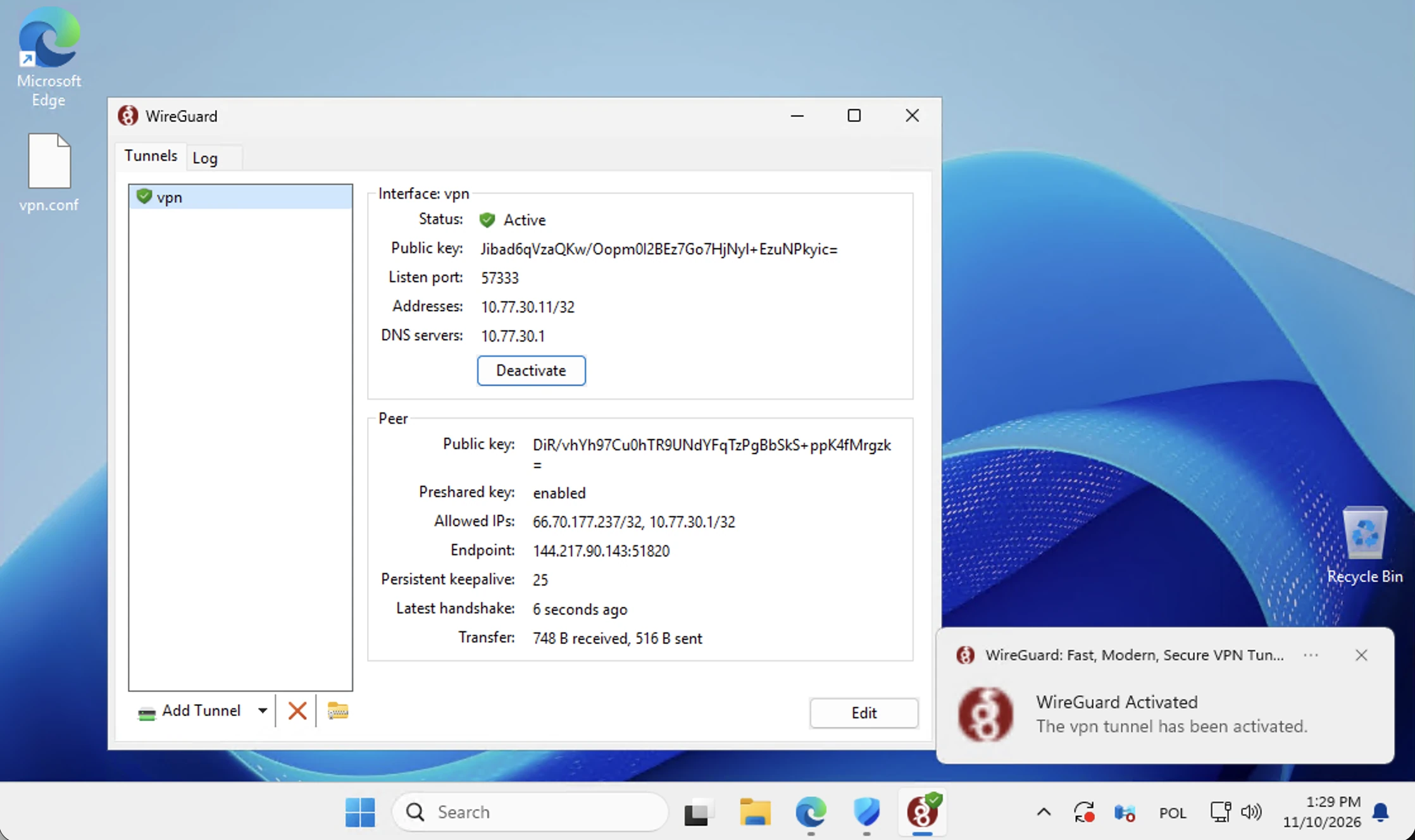
First open WireGuard, import the supplied configuration and activate the tunnel. You are applying a ready-made access profile, not designing the server’s VPN settings. Leave the profile’s technical values unchanged. If your workplace restricts software installation, ask its IT administrator to install the client.
Next open Remote Desktop Connection from Windows Search, or press Windows + R and run mstsc. Paste your assigned RDP address into Computer and select Connect. Keep any custom port included in the panel value.
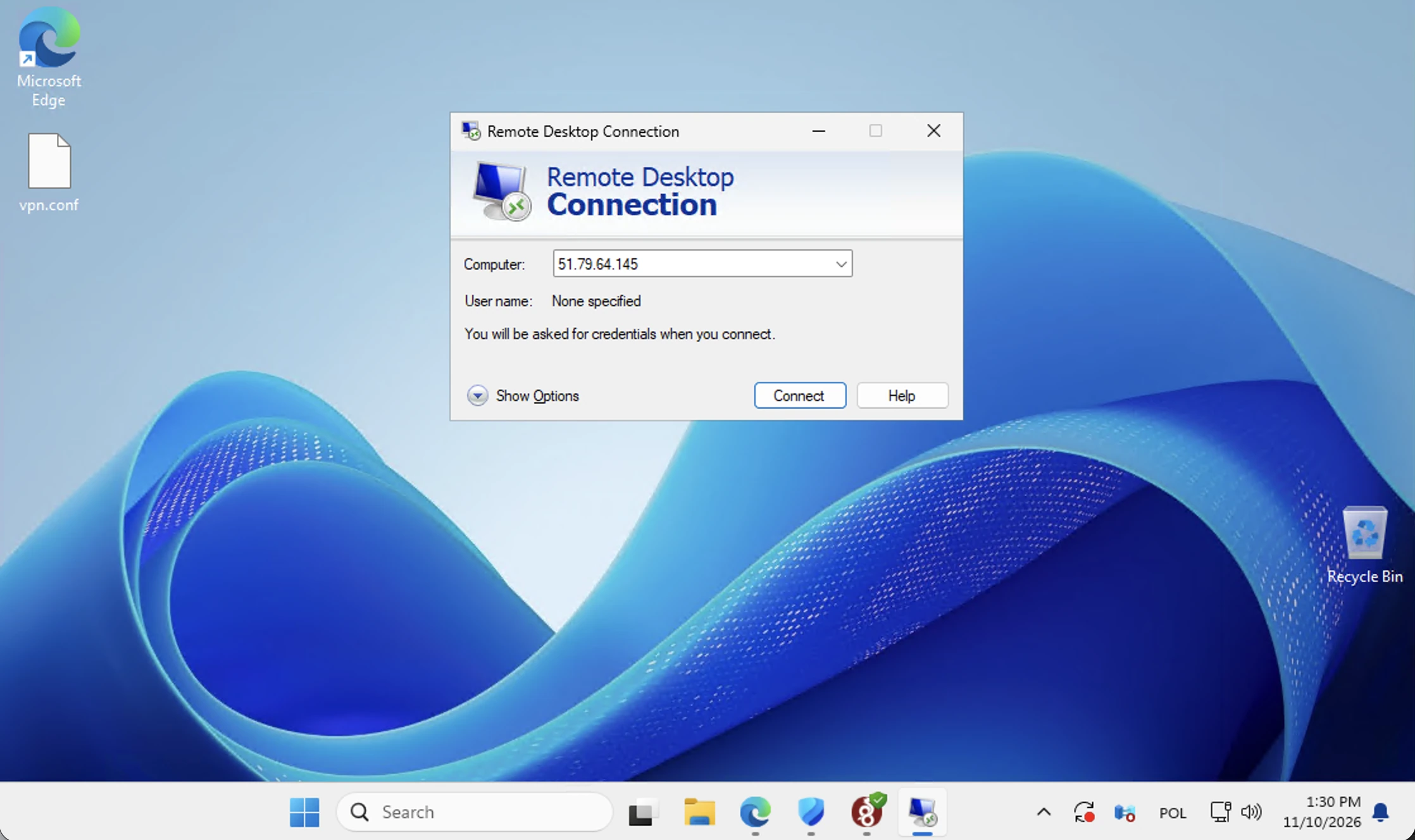
Enter your individual Windows username and password. If a certificate warning appears, verify the server identity through a trusted Netcloud24 support channel before continuing. Once signed in, you work in your own session alongside other authorised users.
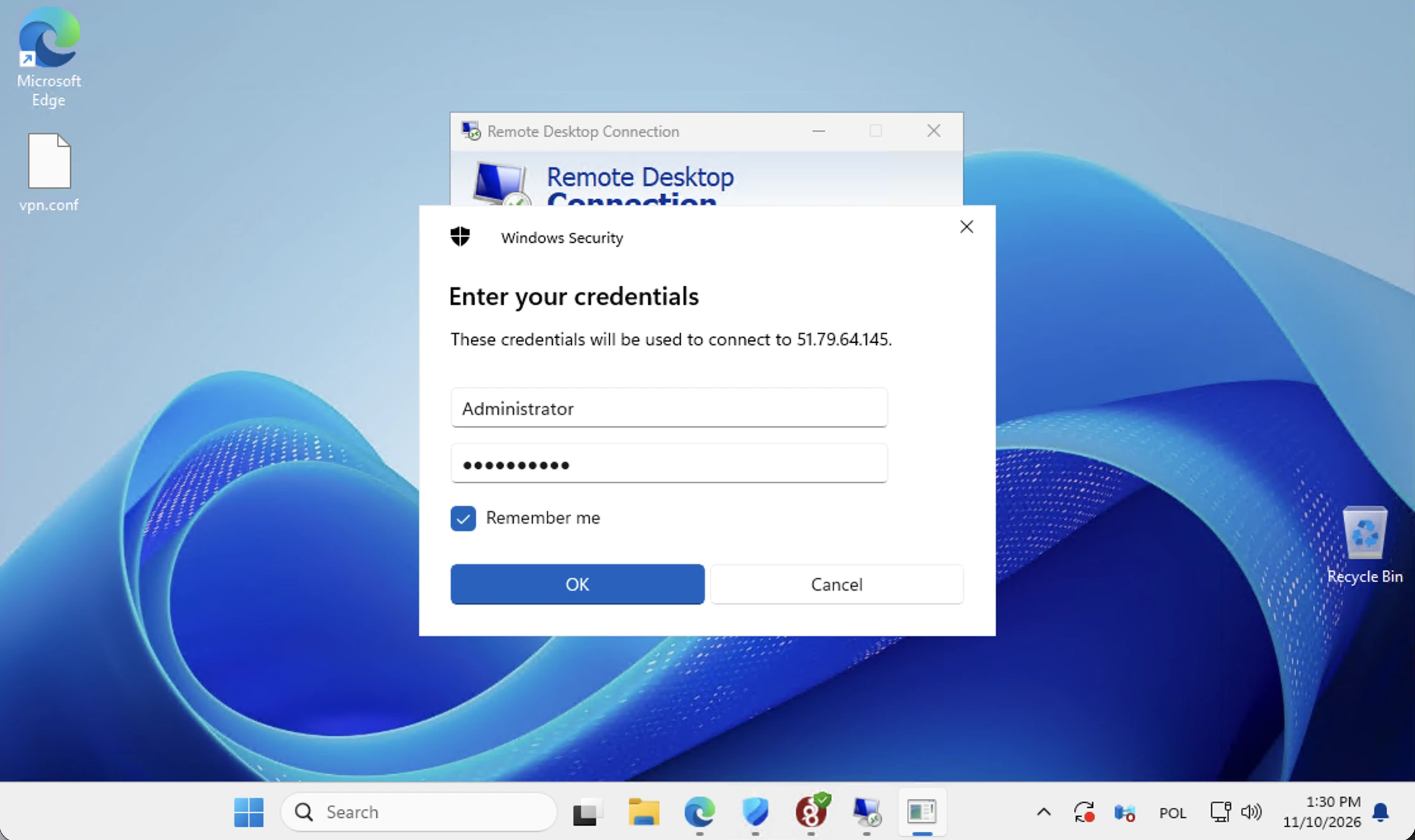
The full WireGuard and Remote Desktop guide for Windows explains the client-side steps in order.
Connect from a Mac
On macOS, import your supplied profile into WireGuard and activate it. Then open Microsoft Windows App, choose Add PC and enter the full RDP address from your service panel in PC name. A friendly name can help identify the saved server connection.
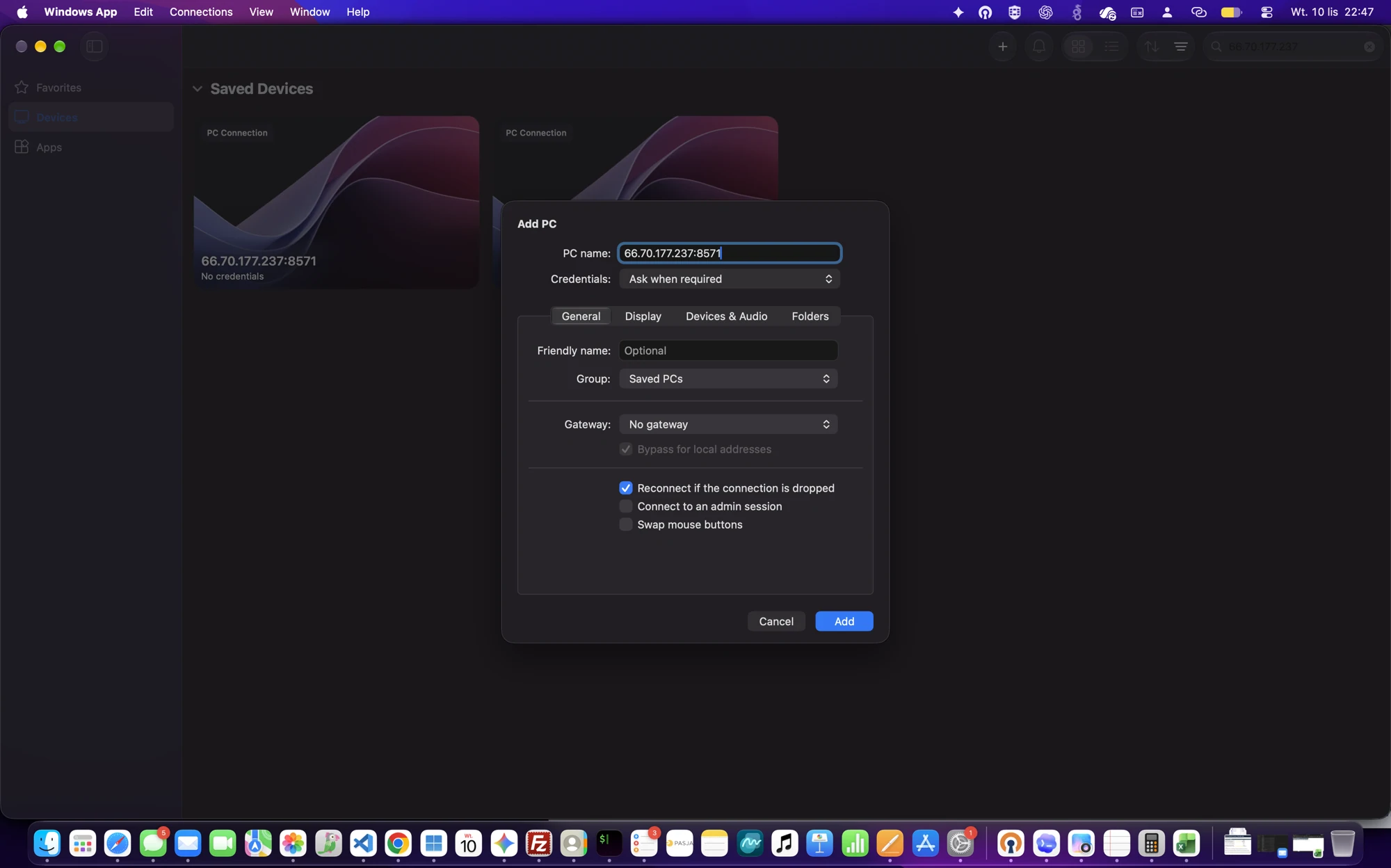
Open the saved PC and enter your individual Windows credentials when asked. Review any certificate warning and verify the expected server identity before continuing. Your Mac login and Netcloud24 client-panel login are separate from your Windows session credentials.
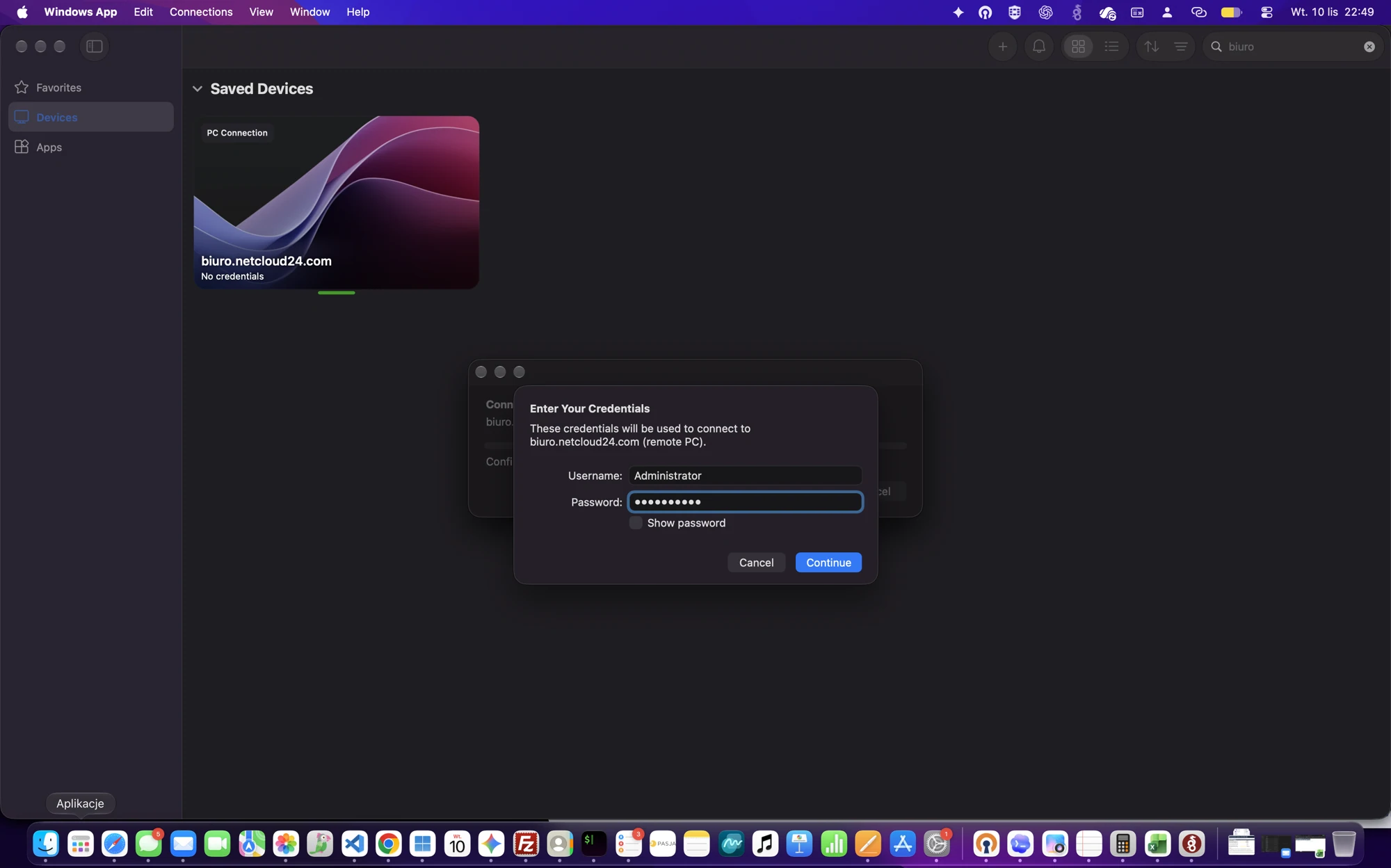
The Windows desktop then opens inside Windows App on your Mac. Windows and Mac colleagues can work at the same time when their accounts, licences and server capacity cover the intended use. Their local operating system does not require a separate server for each person.

See the complete Mac connection guide for the illustrated walkthrough.
Working together day to day
Save shared work in the folders or applications configured for the team. Keep your own account credentials private, and tell Netcloud24 when employees join, leave or need different permissions. Application access should follow each person’s role.
When finishing, save your work and sign out of Windows to end the session. Closing the remote window may only disconnect it, leaving applications running under the server’s session policy. Keep the VPN connected until you no longer need server access.
The images illustrate Windows and Mac connection workflows; they are not a benchmark or proof of a particular number of simultaneous users. We size and configure your environment for the people and applications you actually need. Review managed Windows VPS hosting or contact our team to arrange a fully prepared RDS environment.
 How to Install the Remote Access and RRAS Roles on Windows Server
Install the appropriate Remote Access and RRAS components, distinguish routing from VPN initialization, account for platform and Windows…
 How to Configure NAT with Windows Server RRAS
Configure traditional RRAS IPv4 NAT with explicit public and private interfaces, verify client addressing and translation, troubleshoot…
 How to Configure a Secure IKEv2 Remote Access VPN with RRAS
Deploy an IKEv2-only RRAS VPN with a defined certificate and EAP-TLS NPS model, verify external client routing and rejected access, and…
 How to Configure a Site-to-Site VPN Interface in RRAS
Create an IKEv2 site-to-site RRAS interface with machine certificates, explicit remote routes and matched peer policy, then verify…
 How to Install and Register a Network Policy Server
Install NPS, register its computer account in AD, add known RADIUS devices, create a narrow pilot policy, and verify grants, denials and…