Applies to: Windows Server 2019, 2022 and 2025.
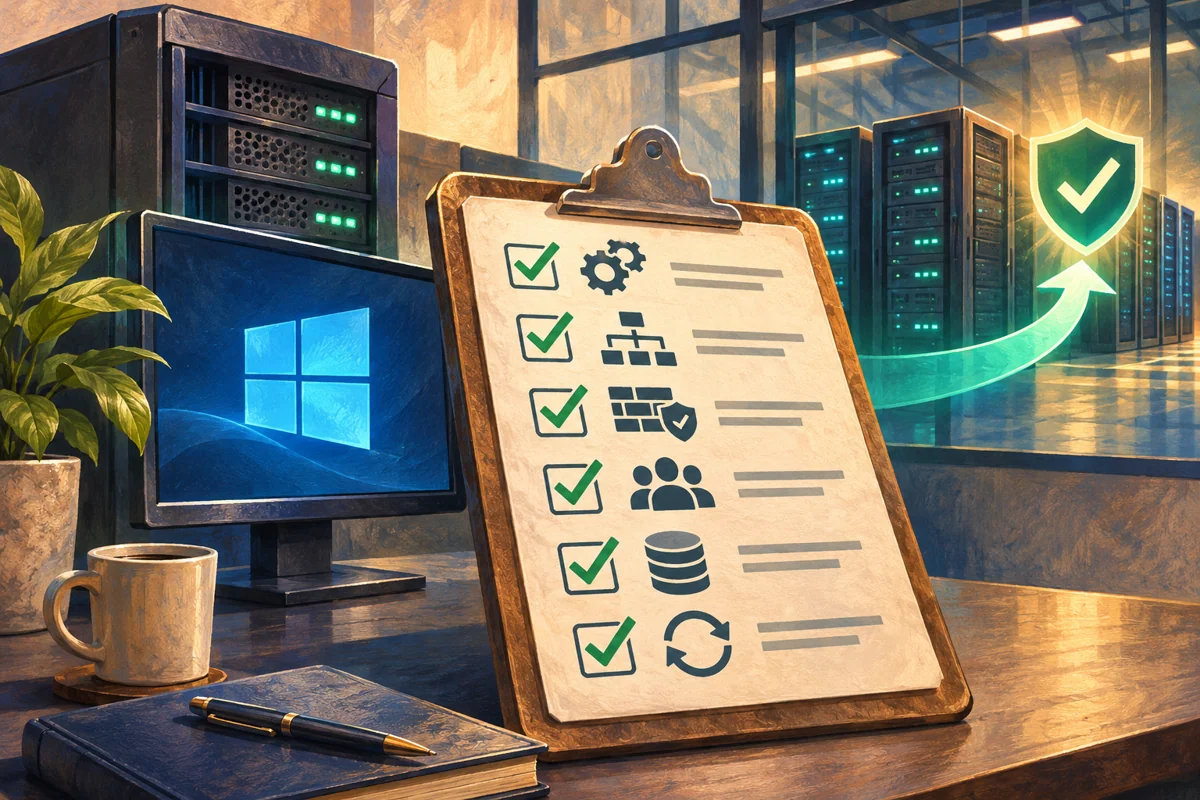
Installation creates an operating system, not a production-ready service. This checklist covers identity, network, security, servicing, monitoring, backup and acceptance.
Work from console access or a tested recovery path. Changes to remote access, licensing or domain membership can lock out administrators if prerequisites are wrong. Managed Windows VPS options are available at managed Windows VPS hosting.
Prerequisites
- Use the approved build sheet.
- Keep console access until remote management works.
- Assign monitoring and backup ownership.
- Define workload acceptance tests.
Step-by-step procedure
Step 1: Record identity
Capture name, edition, build and installation type.
hostname
Get-ComputerInfo | Select WindowsProductName,WindowsVersion,OsBuildNumber,WindowsInstallationType
Step 2: Validate network and time
Confirm IP, DNS, route, zone and synchronization.
Get-NetIPConfiguration
Get-DnsClientServerAddress
Get-TimeZone
w32tm /query /status
Step 3: Apply baseline
Configure named accounts, least privilege, firewall scope, Defender, auditing and approved remote access.
Step 4: Patch and restart
Install approved updates and verify service recovery.
Step 5: Enable monitoring and backup
Test alert delivery and complete a restore test.
Step 6: Run acceptance
Exercise applications, storage, printing, integrations and representative connections.
Step 7: Complete handover
Record licensing source, support contacts, maintenance and recovery.
Verification
Review critical events and unexpected stopped services before acceptance.
Get-Service | Where Status -eq 'Stopped'
Get-WinEvent -FilterHashtable @{LogName='System';Level=1,2;StartTime=(Get-Date).AddHours(-24)} -ErrorAction SilentlyContinue | Select -First 30
Rollback
Keep the previous system or known-good image until acceptance. Reverse changes from the build record or restore the tested backup.
Version and operational notes
Lifecycle status and available security features must be assessed for the specific Windows Server release.
Official references
For a hosted environment with setup and onboarding, explore our managed Windows VPS plans.
 How to Install Windows Server 2025 with Desktop Experience
Install Windows Server 2025 with Desktop Experience from authorized media. Select the correct image and disk, verify edition and…
 How to Install Windows Server 2022 Server Core
Install Windows Server 2022 Server Core with a manageable baseline. Confirm workload support, select the correct image, use SConfig and…
 How to Install Windows Server 2019 with Desktop Experience
Install Windows Server 2019 with Desktop Experience for a supported workload. Prepare licensing and recovery, choose the correct disk and…
 Server Core vs Desktop Experience: How to Choose for Windows Server 2019, 2022 and 2025
Compare Server Core and Desktop Experience for Windows Server 2019, 2022 and 2025. Assess application support, management tools, optional…
 How to Configure Windows Server Core with SConfig
Configure Windows Server Core with SConfig using an approved baseline. Set identity, networking, time, domain membership, updates and…